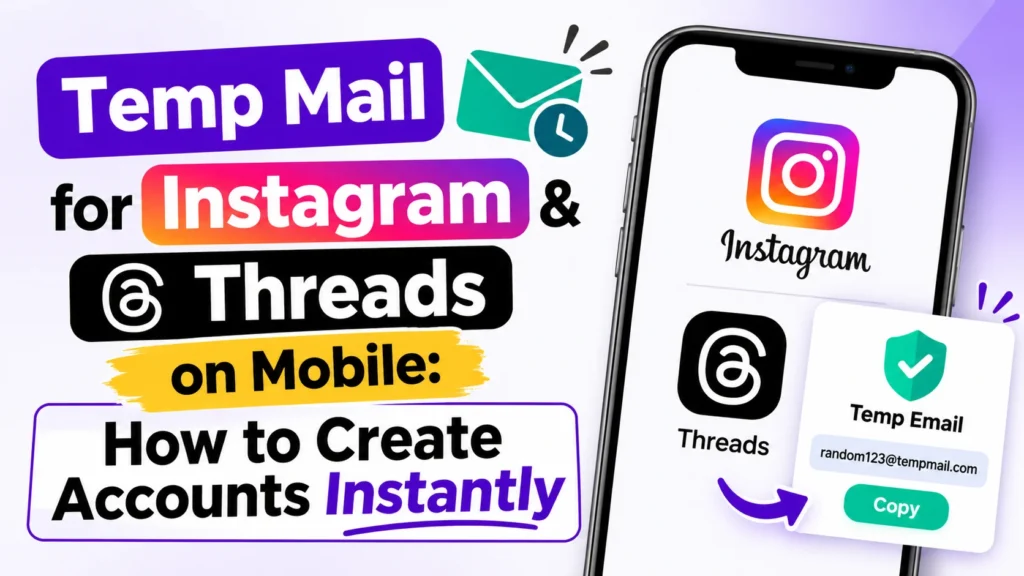
Temp Mail for Instagram & Threads on Mobile: How to Create Accounts Instantly
Are you trying to set up a secondary or business account on Instagram or Threads using your Android or iPhone device, but you want to avoid spam? Looking for a reliable temp mail for instagram to protect your primary inbox? Whether you are managing multiple niche profiles, keeping your personal identity private, or just testing out a new social media page, signing up without your real email address is easier than ever.
In this complete guide, we will walk you through everything you need to know about setting up verified mobile accounts safely and instantly.
Why Use a Temporary Email for Instagram & Threads? {#why-use-a-temporary-email-for-instagram–threads}
When downloading Instagram or Threads on your mobile phone, creating a brand new profile usually requires an email verification code (OTP). Using your main personal or work email can lead to several major inconveniences:
- Inbox Clutter: Endless promotional emails, security alerts, and notification spam from Meta.
- Privacy Concerns: Keeping your personal identity completely separate from your public or experimental social media profiles.
- Quick Setup: Avoiding the hassle of registering a brand new Gmail, Yahoo, or Outlook account every single time you need a fresh profile.
With a high-quality disposable temporary email service, you get a fully functional live inbox that receives verification codes instantly, and it can be discarded whenever you choose.
How to Use Temp Mail for Instagram on Mobile {#how-to-use-temp-mail-for-instagram-on-mobile}
Follow these 4 simple steps on your smartphone to get your new account running in under 2 minutes:
Step 1: Get Your Free Temporary Address
Open your mobile browser (Chrome, Safari, etc.) and visit Temp Email Now. Your secure, random temporary email address will be generated instantly on the homepage. Simply tap the Copy button next to it.
Step 2: Open Instagram or Threads App
Launch the Instagram or Threads app on your Android or iOS smartphone. Tap Sign Up and choose the option to register using an email address instead of a phone number. Paste the temporary email address you just copied.
Step 3: Receive and Enter the OTP Code
Switch back to your browser tab where your live inbox is open. Wait a few seconds for the Instagram or Threads verification code to arrive. Copy the 6-digit code, return to the app, and paste it to complete the verification.
Step 4: Complete Your Profile Setup
Choose your username, secure password, and profile picture. Your account is now fully active, verified, and completely detached from your personal inbox!
Best Practices for Social Media Verification {#best-practices-for-social-media-verification}
To ensure you don’t lose access to your newly created mobile accounts, keep these quick tips in mind:
- Keep the Browser Tab Open: Do not close your temporary email page until you have successfully received and entered your confirmation code.
- Save Your Login Credentials: Remember that temporary emails are disposable. Make sure you securely save your Instagram username and password so you don’t get locked out later if Meta requests a re-verification check.
- Learn More About Mobile Security: For further guidelines on digital privacy and account safety, you can check out resources like Instagram’s Official Help Center.
Conclusion {#conclusion}
Creating secondary accounts on mobile apps shouldn’t be a tedious chore. By utilizing a fast, reliable tool like Temp Email Now, you can protect your personal privacy, eliminate inbox clutter, and set up new profiles instantly.
👉 Generate a Free Temp Mail Address Now and start setting up your mobile accounts safely today!